
Workshop log · Software Projects
A Receipt Printer for the Kitchen
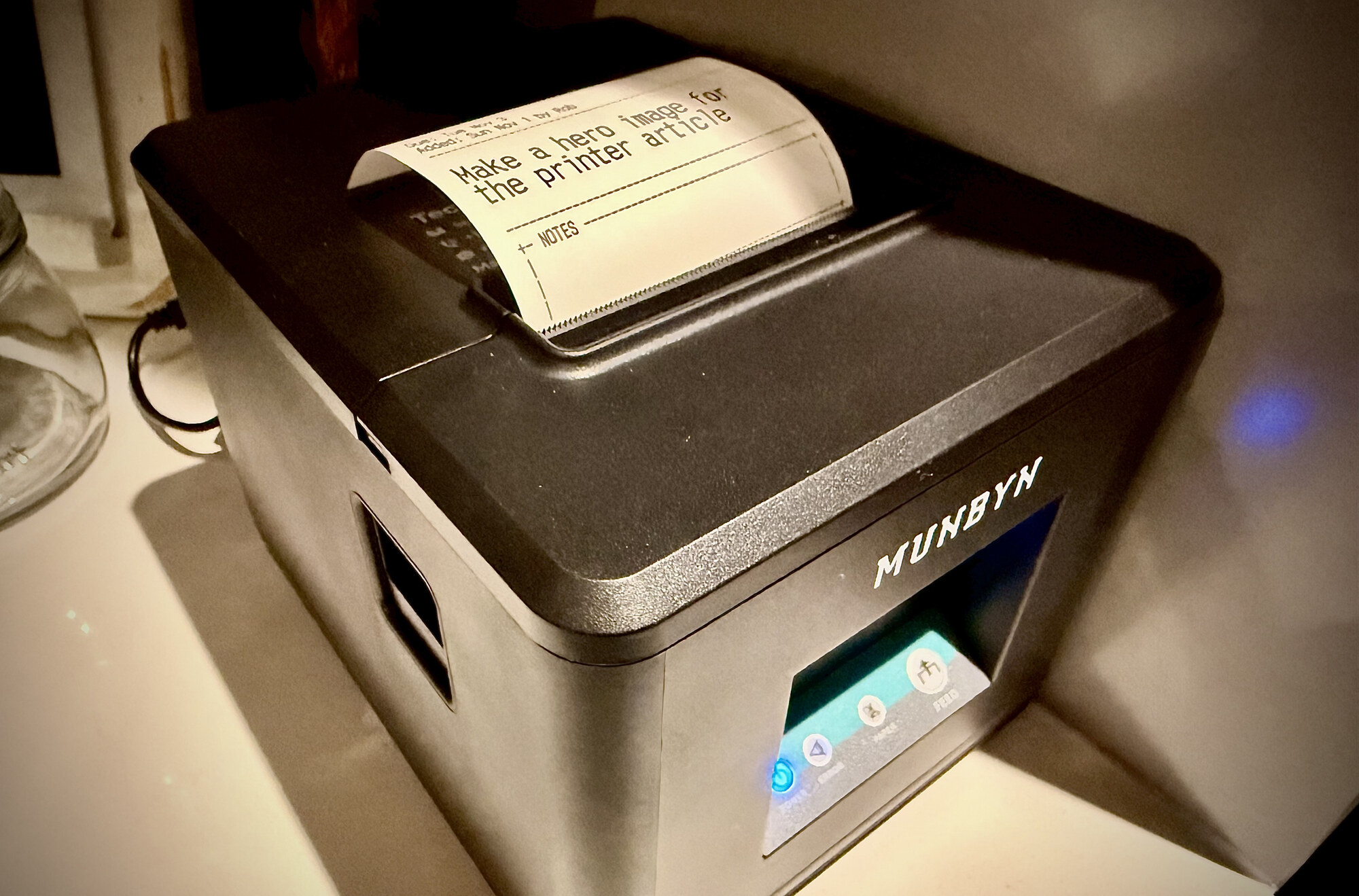
Why a receipt printer
I hate printers with a passion. They are problematic at the best of times. Inkjets are the worst. Unless you are printing photos, a laser is better. I have a big colour Xerox on the network, but four toners set me back $90+ a pop. At least they never dry out (Pro Tip: Toner is already dry). Companies practically give out inkjets for free. Why? The ink costs as much as snake anti-venom.
How do I get quick, simple, cheap printouts? The answer was simple, if not immediately self-evident. A thermal receipt printer. The workhorse of the retail world. Simple? Check. Quick? Check - these things are like lightning. Cheap? Duh. No ink or toner. Inexpensive thermal roll paper (I got 230’ for $8, bulk orders would be cheaper).
What’s it for, you ask? Shopping lists, recipes, reminders, a to-do for the day. Something tactile that you can grab and go.
Part of the appeal is having something tangible. A task on a slip of paper doesn’t disappear behind another app or notification. You can pick it up, move it across a physical Kanban board , and when you’re done, toss it in a jar or stab it onto one of those restaurant spike things (I’m sure they have a proper name). A good way to see progress.
Also, my other projects needed an output. Servo , my rover, can talk and see, but it can’t leave anyone a note. Now it will be able to.
The limits I set at the start:
- Under $100 CAD for the printer, bought in Canada. I paid $99.99 CAD on Amazon.ca. Apart from paper, it was the only thing I bought.
- A Pi I already had, running headless. No screen or keyboard. An old Pi 3 B+ (still sold, around $80 CAD when I checked).
- Telegram (free) to communicate with the server remotely. Most printing happens from here. I set up a bot that my family “chats” with.
- Any AI work stays on my own hardware. No paid API. There is no AI yet.
- Code lives in my own Gitea, and nothing is reachable from outside the house. (I kinda broke this rule, more later)
What it is now
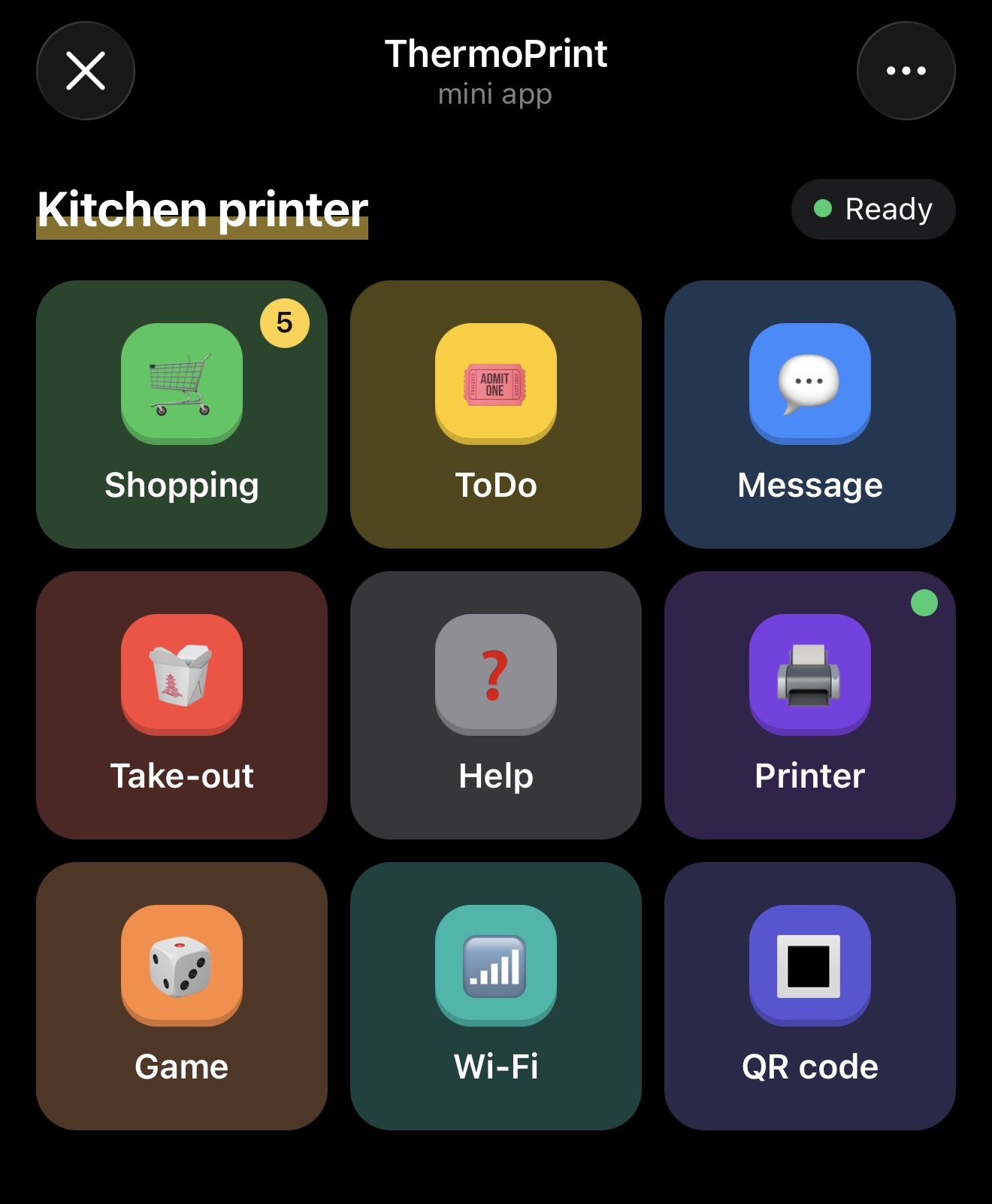
It started as a Telegram bot. It’s now a small app that lives inside the bot (Telegram calls these Mini Apps), with a tile for everything it can print. Tap a tile, fill in a box, tap Print, and a slip comes out in the kitchen.
The tiles are in the order we use them, not alphabetical. Badges show how many things are on the shopping list and whether the printer is ready, and the tiles bounce and buzz when you tap them.
I built the app on top of the bot, not instead of it. Every tile is still a slash command in the chat (/shop, /ticket, /takeout, /game and so on), so I can still type if I want to, and /help lists them all.
The benefit I didn’t see coming showed up in testing: speech to text. Telegram’s chat box already takes the phone’s dictation, but commands don’t dictate. Nobody wants to say “slash shop underscore add eggs”. In the app I tap Shopping, tap the box, hit the microphone on the keyboard and say “eggs and milk”. It splits that into two items and adds them. No typing. Basically any text box in the app can be yelled at.
It runs in three places. A MUNBYN receipt printer sits in the kitchen, plugged into an old Raspberry Pi that puts it on the Wi-Fi. A small service on my home server holds the lists and the print queue and sends jobs to the Pi. And because Telegram has to reach the app from outside the house, the Mini App itself lives on my web host and passes print jobs home through a kind of mailbox. More on that further down, along with how I broke my own rule.
What each tile does
Shopping
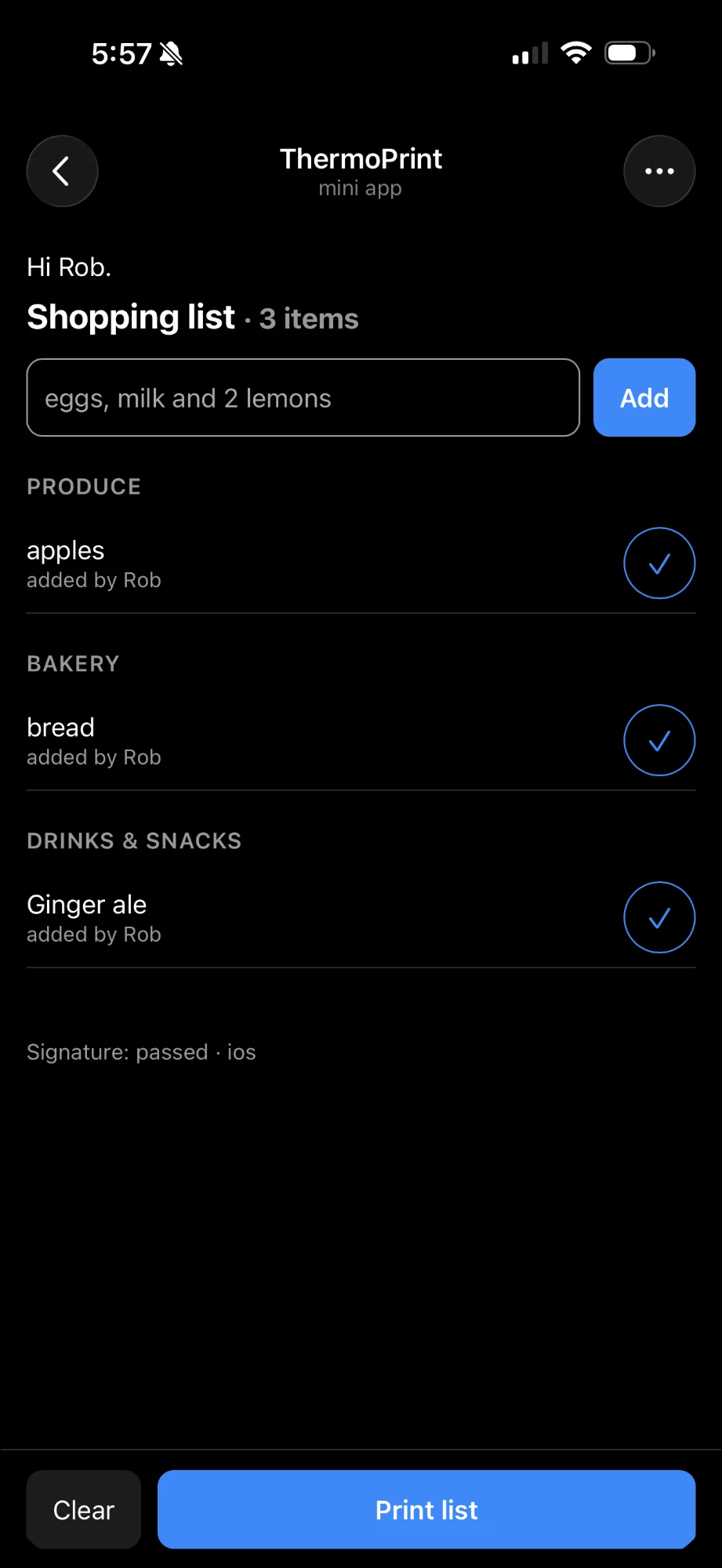
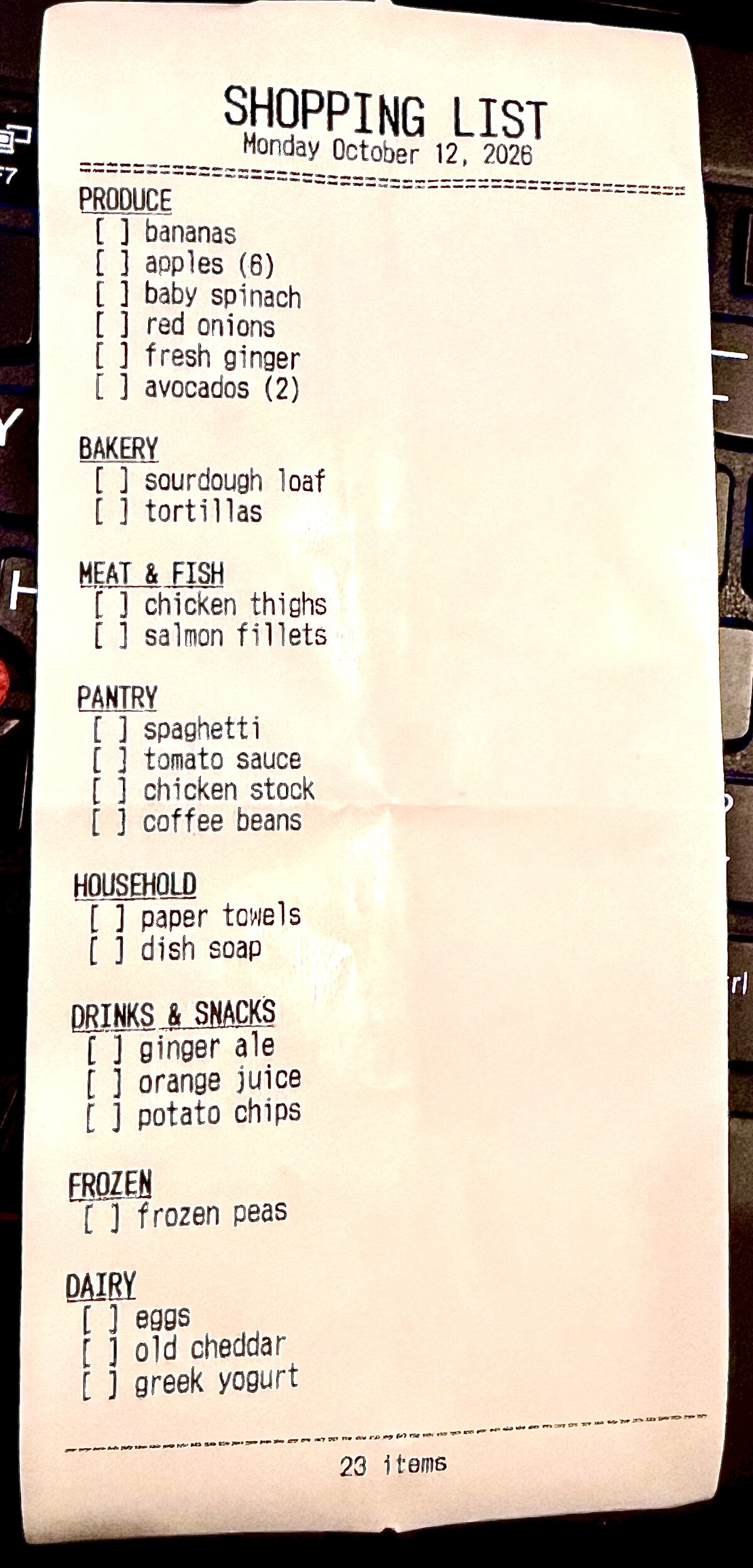
You can type (or say) it the way you talk: “eggs, milk and 2 lemons” becomes three items with the quantity pulled out. If something’s already on the list, it asks whether to increase the quantity or ignore it. Each item gets an aisle from a keyword table, and the printed list is grouped by aisle with tick boxes.
The aisle guess had a few funny failures once I printed a real list. “Ginger ale” went to Produce, because the matcher saw “ginger” and stopped looking. Now the word that says what the thing is (ale, juice, chips, sauce) wins wherever it sits in the name, so ginger ale goes with the pop and fresh ginger stays with the vegetables. Spaghetti was landing in Other until pasta shapes went into Pantry.
Then I noticed Produce was printing at the bottom. In a Canadian grocery store, produce is usually by the front door, frozen is at the far end with the pop nearby, and dairy is last or across the top. So the list now prints in the order I walk the store: Produce, Bakery, Meat & fish, Pantry, Household, Drinks & snacks, Frozen, Dairy.
ToDo
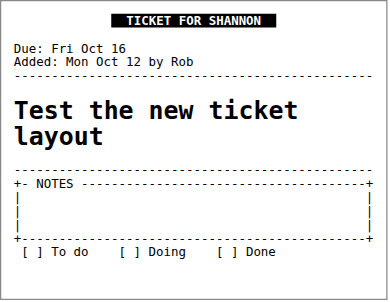
This is the paper Kanban board. ToDo (/ticket in the chat) asks for the task, who it’s for and when it’s due, shows a preview, and prints. That’s it. Nothing is stored. The ticket is the record, and when it’s done it goes in the recycling.
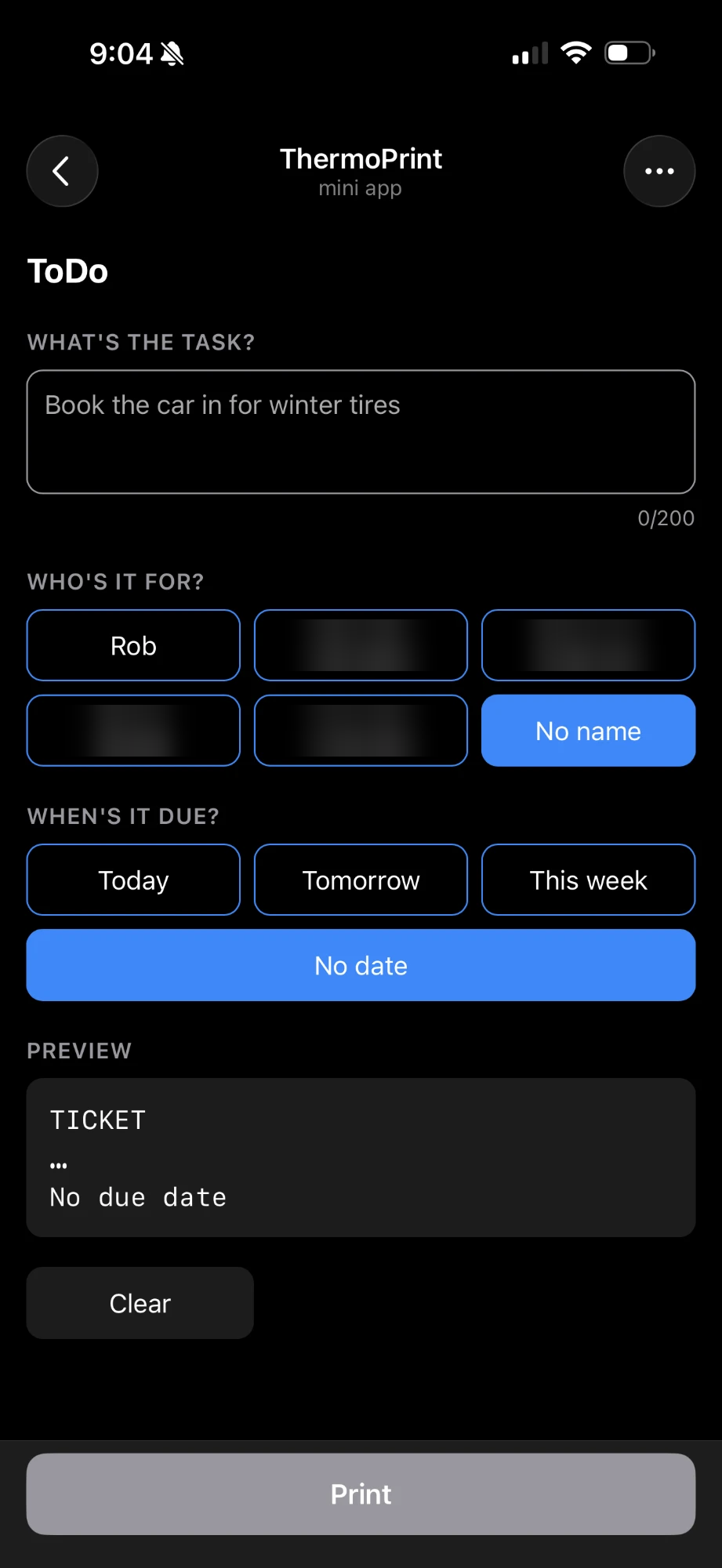
The ticket has a banner with the person’s name, a notes box to write in, and To do, Doing and Done boxes, so it can move across the board. The names on the buttons used to be hard-coded. Now I edit them from the bot with /family.
Take-out
I got distracted while I was writing this and built a Take-Out tool. We have endless “discussions” on what we want to order as we all starve to death waiting for someone (anyone) to make a decision. Then we waste even more time organizing who’s getting what.
Now one person starts an order, picks the place and who’s ordering, and everyone else just types (or says) what they want. Anyone can take their own items back off with a button. The person ordering taps Print and gets one slip with everyone’s order, grouped by name.
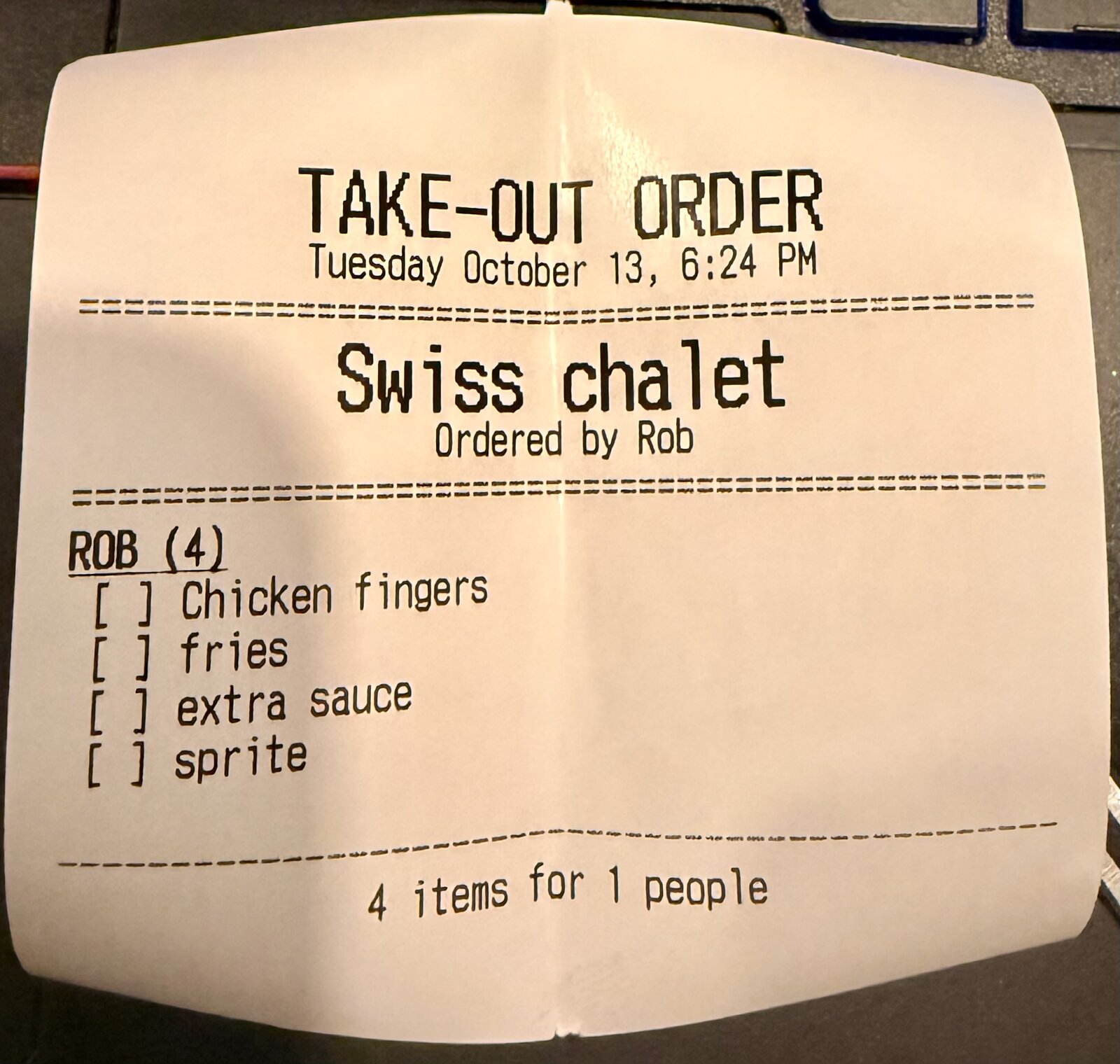
Yes. I know “4 items for 1 people” is weird. It’s fixed now.
Game
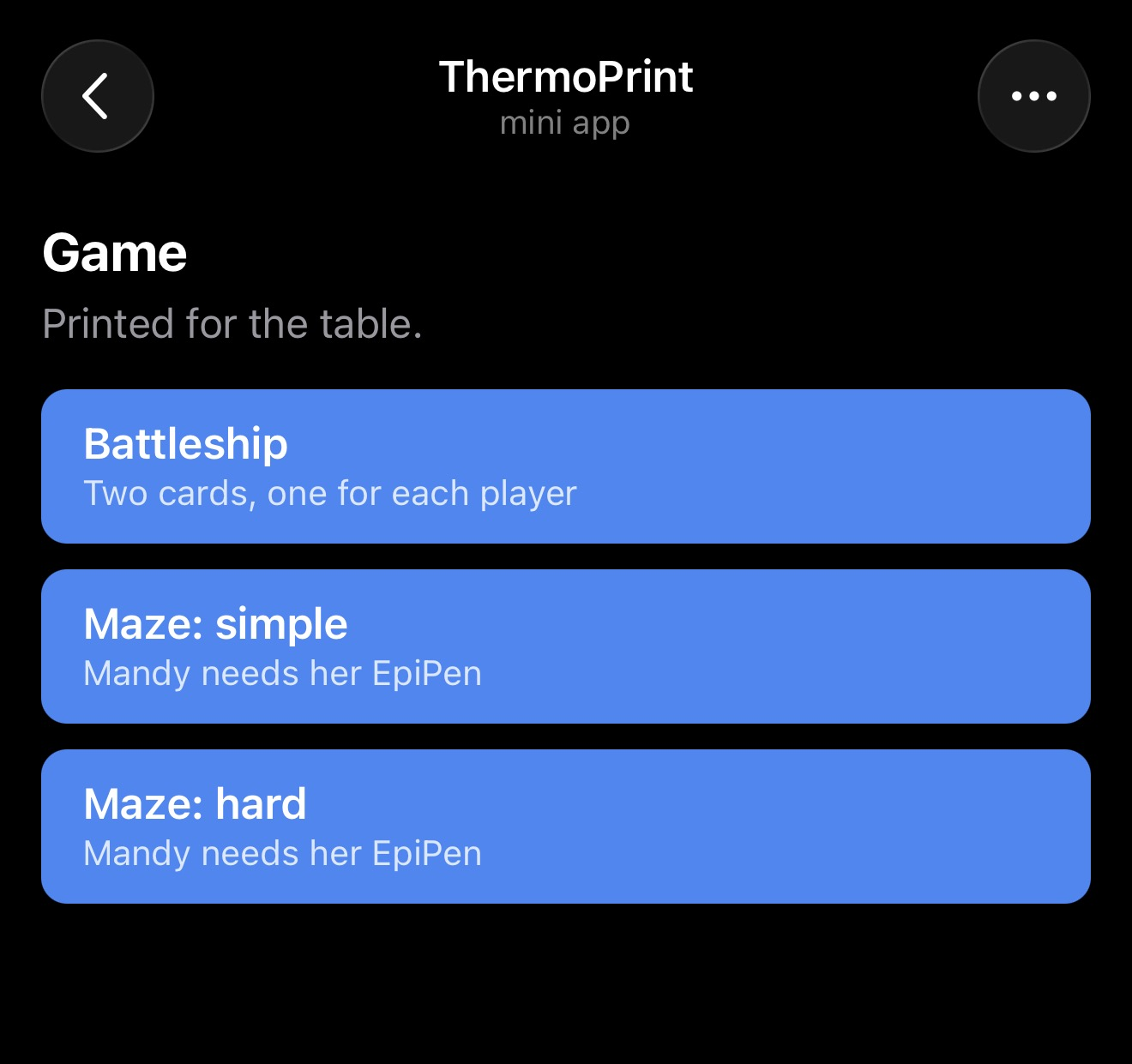
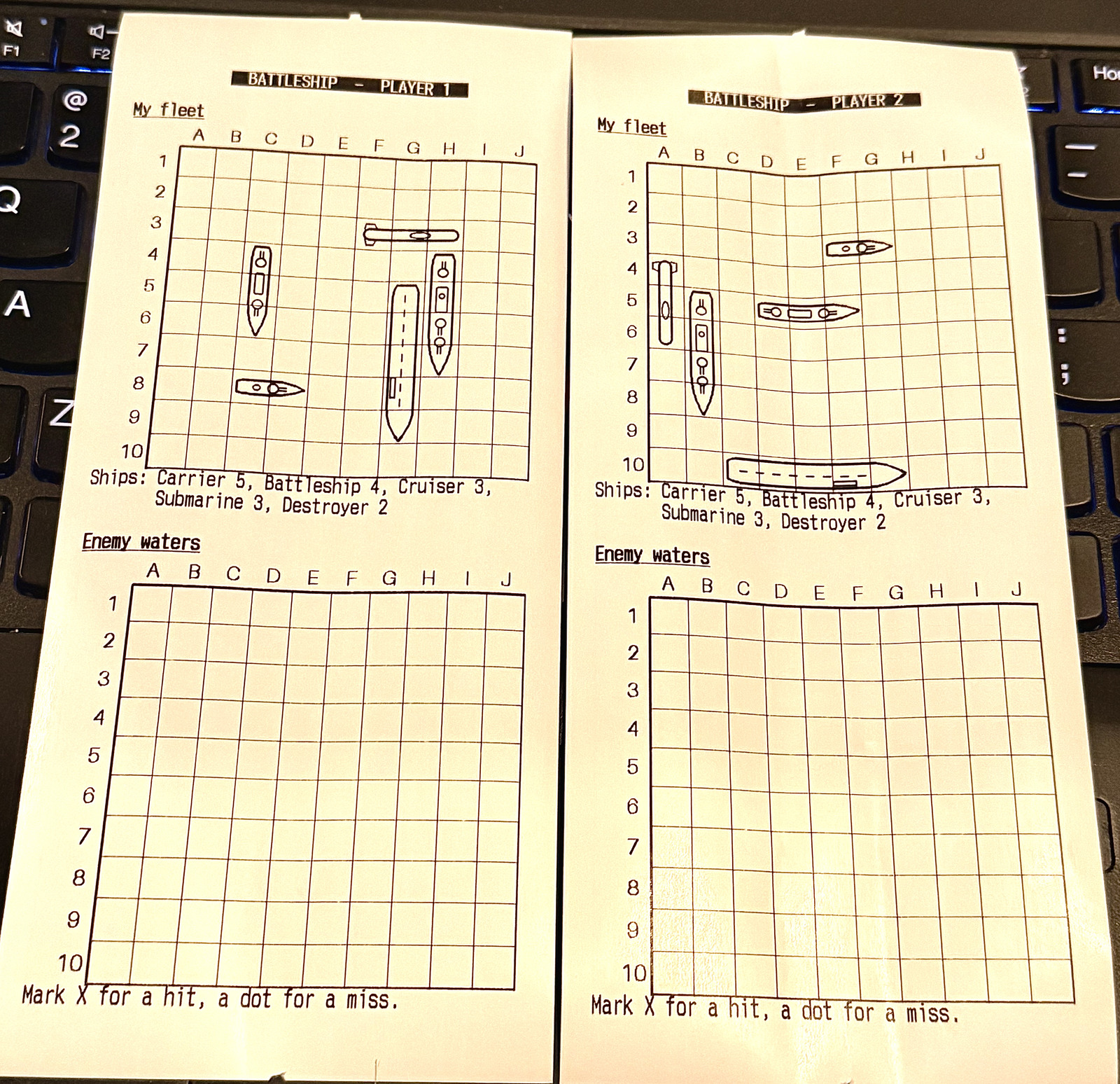
Something for the table. Battleship prints two cards, one for each player, each with its own fleet already placed and an empty grid for enemy waters. The maze is called “Mandy Needs Her EpiPen” (This could be customized for visitors) and comes in simple (12×12) or hard (18×36). Word search and sudoku are coming.
Other useful bits
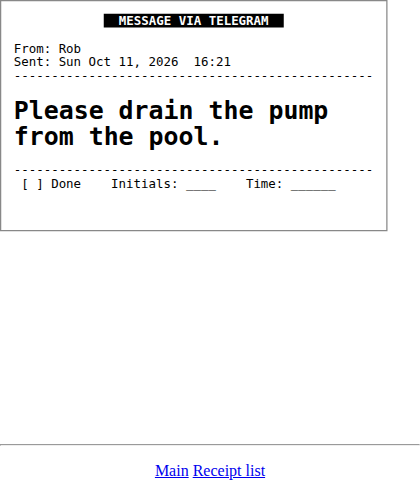
- Message. Prints whatever you type, with your name and the time on it. In the chat you don’t even need a command. Any plain text sent to the bot prints.
- Wi-Fi. Prints the guest network details for visitors. The home server prints that slip itself, so the password never leaves the house.
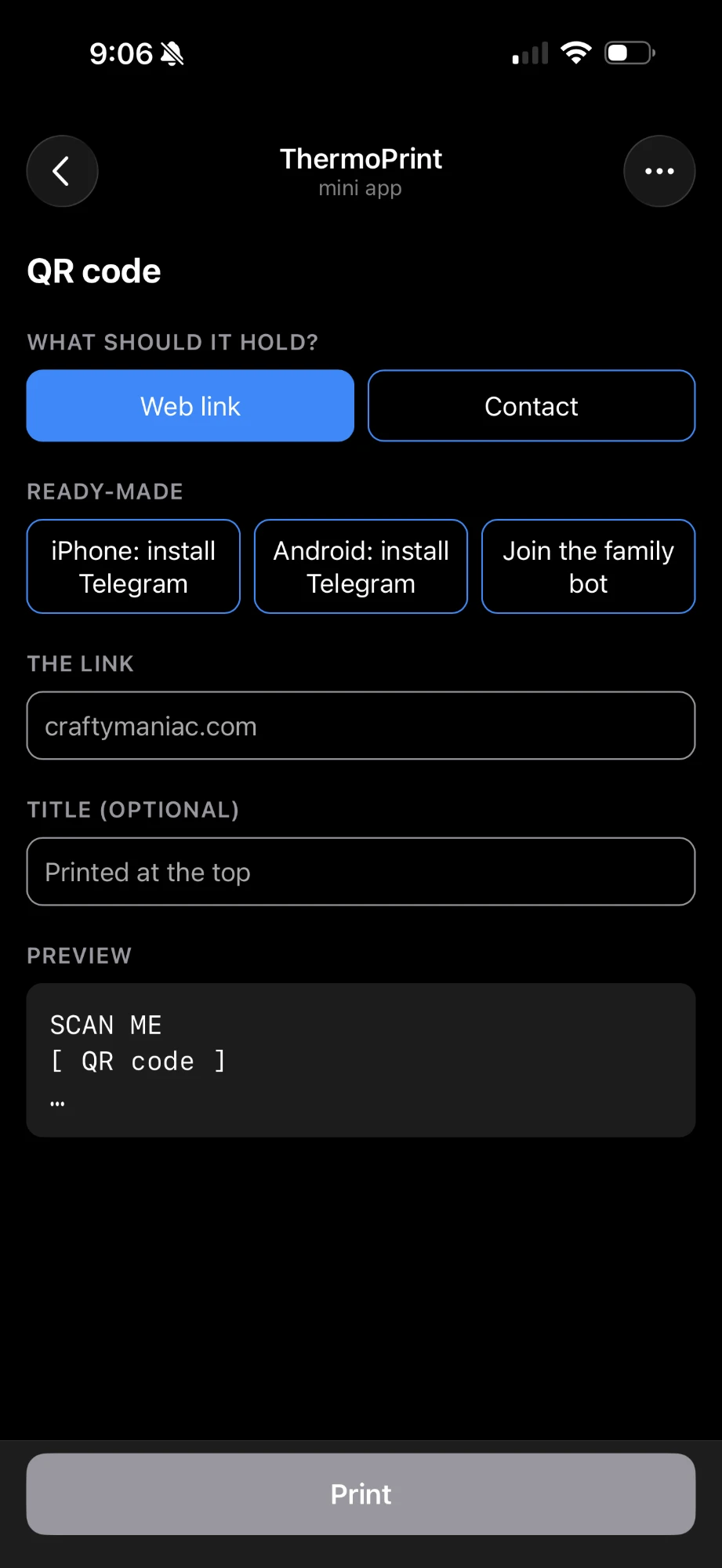
- QR code. Makes a code for a web link, or a contact card with your own Telegram details.
- Printer and Help. Printer says whether anything is waiting, whether it’s quiet hours, and the last problem it hit. Help lists every command.
Photos
Photos go straight to the bot. Send one and it asks for a title, or uses your caption.
80mm of paper is 576 dots wide, and each dot is either black or white. No greys. For photos the usual trick is dithering, which fakes grey with patterns of dots, and that’s what the bot does. It also turns the picture so the long side runs along the paper.
Line drawings were different. For a pencil drawing photographed on paper, dithering turned the grey paper into dot noise. A hard cutoff worked much better: even out the lighting in the photo, then anything darker than mid-grey prints black, everything else white. Clean line art on a white background just needed scaling to full width.

This is a meme that my daughter finds hilarious. I don’t get it. I don’t know the source… Sorry.
Getting the family on
Adding someone used to mean me editing a file. Now I print two QR slips from the QR code tile: one to install Telegram (iPhone or Android) and one to join the family bot. They scan both and say hi. I get a “wants to join” message with Approve and Ignore buttons, and once I approve, the bot asks whether to add them to the ToDo names too.
Strangers who find the bot get one polite reply, and no more than 5 join requests a day reach me. It can’t be added to group chats at all, so a busy family chat can never turn into a pile of paper.
How it works
The printer is only the output. The brains are a small service I called printhub, running in Docker on my home server. It holds the shopping list, the templates for each kind of slip and a print queue. If the printer is off or out of paper, jobs wait and go out in order when it’s back. There are quiet hours from 10pm to 6:30am so nobody gets woken by a printer chattering in the kitchen. A slip sent at night waits until morning, with a “Print now anyway” button if it really can’t wait. There’s also a limit on how many slips any one sender can print in an hour, so a bug in a script can’t empty the roll.
A wifi or network version of the printer is more than double the price. I decided that one of my old Pis would give me wireless connectivity while also supporting AirPrint from my iPhones.
There are two ways onto paper:
- Apps. The Mini App, the Telegram bot, the shopping page, Servo and my scripts all talk to printhub, which sends raw ESC/POS to the Pi.
- Documents. Phones print straight to the Pi as an AirPrint printer. For machines, a local print driver takes care of business. That path doesn’t touch the server at all, so it still works if the server is down.
AirPrint and CUPS: AirPrint is how an iPhone finds and prints to a printer with no driver or app. CUPS is the standard Linux print system, and it’s what the Pi runs to share the printer on the network so phones and laptops can see it.
The rule I kinda broke
The Mini App has to live somewhere Telegram can reach, and that can’t be my house. So the app runs on my shared web host (PHP and a small SQLite database), and it works like a mailbox. The app drops print jobs there, and the home server checks the mailbox every 3 seconds over an ordinary outbound HTTPS connection, the same way a browser fetches a page. Nothing at home is open to the internet, and there’s no VPN. The family can print from anywhere.
A few things I was careful about:
- When the app opens, Telegram hands it signed sign-in details. The app checks the signature (a cryptographic stamp proving the details really came from Telegram). That only needs the bot’s public ID, so the bot’s secret token never goes on the web host.
- Only people on the family list get in.
- Contact details typed in for a QR code are deleted from the web host once the slip prints.
- The Wi-Fi password stays at home, as above.
How I built it
The printer
I picked the MUNBYN ITPP047 , an 80mm USB receipt printer that came in under budget on Amazon.ca. It speaks ESC/POS and has a Linux driver for the Pi’s ARM chip, which I ended up not using (more on that below). The Rongta RP332 was an alternate.
ESC/POS: The command language most receipt printers understand. Instead of sending a picture of the page, you send short codes that mean “bold on”, “centre this”, “print this image”, “cut the paper”. It’s what lets a slip print in a second.
Before the printer arrived
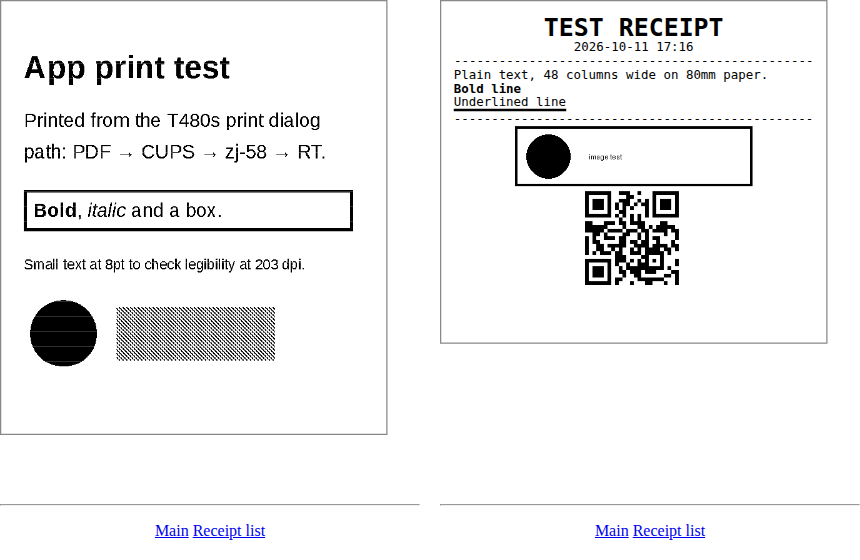
While the printer was still in the mail, I set up a fake one first. There’s an open source project, escpos-netprinter , that pretends to be a network receipt printer and draws everything it receives as a web page. I ran it on my home server and patched it in two places: it drew the receipt narrower than the real printer’s 48 columns, and it mangled or dropped images. Once that was fixed I could see every slip exactly as it would come out on paper.
Setting up the Pi headless, properly this time
The printer was arriving the next day, so I built the Pi in the meantime. It’s a Pi 3B+ from 2017 with the 32 GB card that came out of Servo when it moved to an M.2 drive.
When I set up Servo “headless”, the Wi-Fi never got configured and I ended up plugging in a keyboard and monitor anyway. This time I found out why. The Raspberry Pi Imager from my Linux Mint packages is an old version, and it writes the Wi-Fi and user settings in a format current Pi OS images no longer read. Current images use cloud-init, which reads a couple of plain text files on the card’s boot partition.
cloud-init: A standard way to configure a Linux machine on its first boot from files you leave for it: hostname, user, SSH key, Wi-Fi. Raspberry Pi OS switched to it, so the old Imager settings get ignored.
So I flashed plain Raspberry Pi OS Lite with Imager’s customization switched off, then wrote those files myself: the hostname, my user and SSH key, SSH turned on, the Wi-Fi country, and the Wi-Fi details (typed in by hand so the password never went anywhere else). I checked every file before ejecting the card.
It came up on Wi-Fi on the first boot and I logged in over SSH. No keyboard, no monitor.
Plugging in the printer
I skipped MUNBYN’s driver and wrote a small print filter for the Pi instead. It turns whatever a phone or laptop sends into ESC/POS, trims the blank paper off the end of each page and cuts. The Pi has two print queues sharing the one USB printer: the AirPrint one for phones, and a raw one for printhub, so the two can’t print over each other.
The first test receipt came out, mostly. The top of the QR code was faded and patchy, and the Pi was logging undervoltage warnings. The power supply I’d grabbed couldn’t keep up. A better supply cleared the warnings and they stayed clear through a test print.
Then I pointed printhub at the Pi, sent /print hello from the kitchen from my phone, and it came out of the printer. I was absurdly happy about that. I’m such a child.
Later I added a paper check. If the roll runs out, the Pi holds the job and prints it once there’s paper again.
What doesn’t work yet
Printing an email from my iPhone over AirPrint comes out clipped on the right. The phone crops the email to its own margins on a page that narrow, so the Pi prints exactly the cut-off page it’s given. I tried a wider page shrunk to fit, but the text came out too small to read. It’s in the backlog. It won’t come up much, and a screenshot of the email prints fine in the meantime.
When the paper runs out, the Pi holds the job, but nothing tells you in Telegram yet.
Next
- Recipes. A full chat to find something to make from what we have, or what needs using up. It runs on AI models on my own hardware. Once we pick something, it works out what we’re missing, adds that to the shopping list and prints the recipe. (This is where the AI will come in.)
- Morning agenda. Put together from the family calendars. I’m “iffy” on this one. It means opening up more connections (security).
- Daily affirmations. “I’m great. I’m wonderful. Everybody likes me.” (Rodney Dangerfield, Ladybugs)
- Printing by voice from the car. Siri Shortcuts, so I can add to the list or print a note through CarPlay. The Mini App can’t run there.
- A weekly meal plan.
- Shopping lists for the store I’m going to, so one trip covers what that store is good for.
- Notes from Servo. My robot, Servo, gets a way to print notes (probably veiled threats, knowing my humour).
Living with it
It’s too new to say much yet. Now that my wife can print from her phone instantly, she likes it. Using the Mini App for the shopping list is going to take some getting used to, even without the print button, because the notepad and texting habit is so ingrained. The funny part is when a random slip comes in and there’s a rush to see what it is and who sent it.